Kamis, 29 April 2010

Go Drive Test

1. Configure Recording Properties : Menu Tab Logfile -> Recording Properties

2. Select recording folder : Click Browse -> Select Directory

3. Select Quick logging and setup size of swap file “after reaching message “
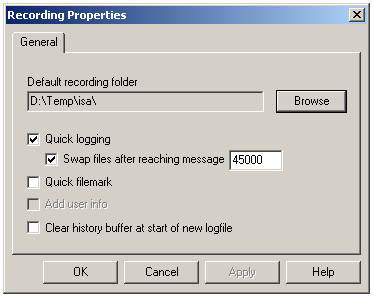
godt-recprop

4. Use 2G or 3G configured workspace (with spacific map : road, route, cell file)

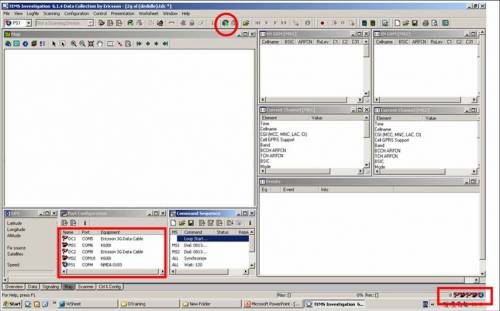
5. Make sure all equipments configured to the right port

6. Connect all godt-connecticon

godt--connectall

7. After all equipments connected (symbol green), window gps, serving neighbour gsm, current channel and events will be full filled

8. Don’t forget to lock TEMS Handset into GSM only or 3G only.
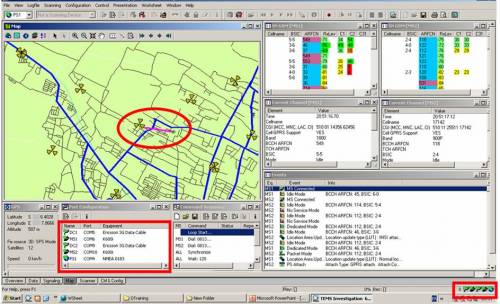
godt-workspace

9. To start drive test, click record then start command sequence
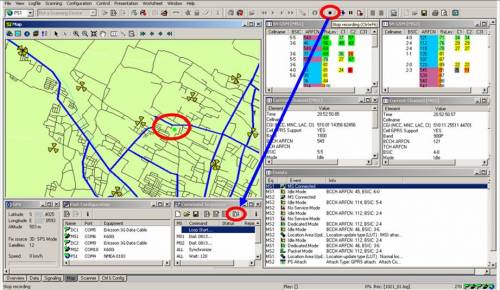
godt-record

10. After all route complete, wait untill call end then stop command sequence and stop recording.
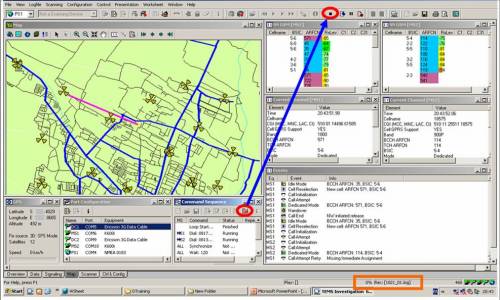
godt-stoprec

Here the flow step by step Go Drive Test !!!
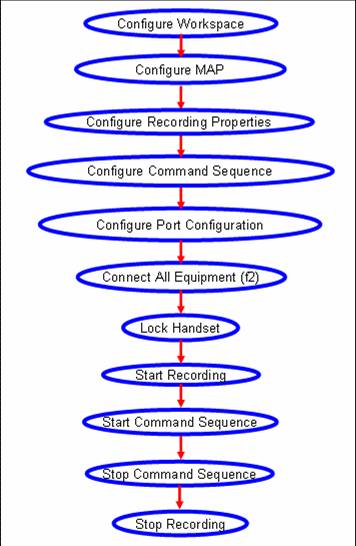
godt-flow

command sequence in TEMS

Herewith the example of command sequence in TEMS

Voice Call CS

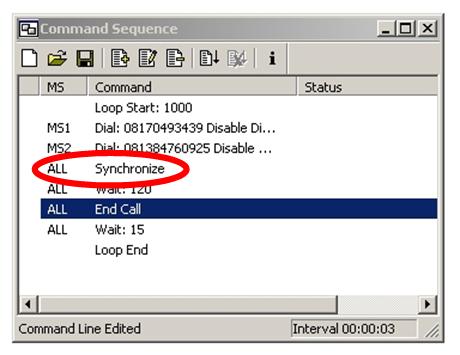
i.e “120/15” means 120 second on call then call end, 15 second wait and then call again.

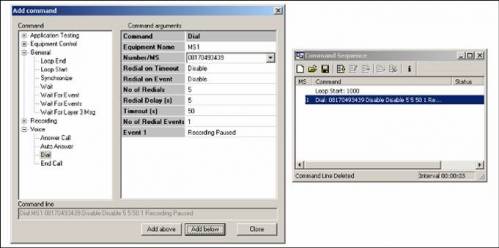
1. Loop Start give the number of repetition for command below the loop start (General -> Loop Start)

2. Dial select the MS and give the destination number (Voice -> Dial)

cs-ms1


3. Synchronize to synchcronize MS before go to the next command (General -> Synchronize)
cs-sync

4. Wait 120 wait 120s on call (General -> Wait)

5. End Call (Voice -> End Call)

6. Wait 15 wait 15 before call again (General -> Wait)

7. Loop End (General -> Loop End)

Video Call CS

In general cs for video call is same as voice call, but in video call in dial command we must add “v”.

i.e

Loop Start

Dial v081384760975

Wait 120

End Call

Wait 15

Loop End

Drive Test Map Configurations

Create Geoset : Click Geoset Manager on Map window map-geoicon

1. On layer control map-layericon remove all layer except Pinpoint, Cell, Event, AMR, RF Quality and Coverage layer
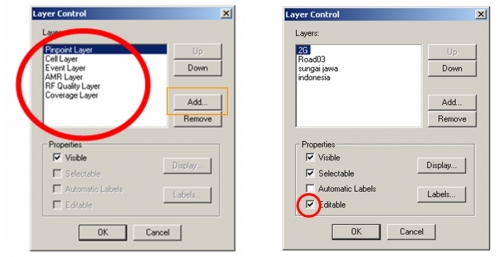
2. Add layer Route, Road, MCOM Site, and other *.tab

map-crtgeoset

3. Save Geoset

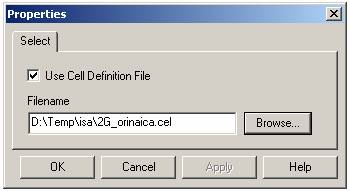
4. Load Cell file : Configuration -> General -> Cellfile Load

5. Use Cell Definition File then choose cell file

map-cell

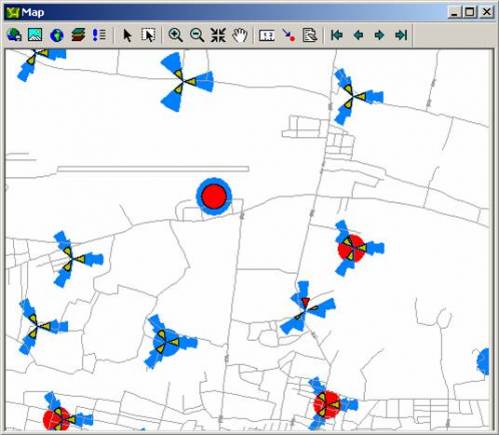
6. ie. Map window configured

map-ie

Drive Test Workspace Configurations

After installition process, open Tems Investigation.
>> All Programs -> TEMS Investigation -> Data Collect

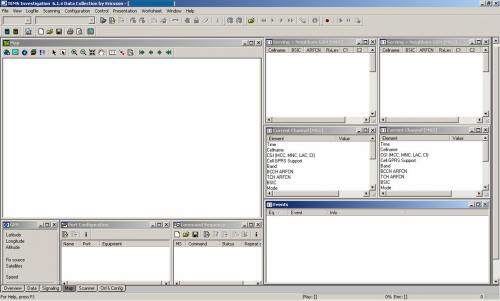
This is the example workspace for 2G (Mode Dedicated-Idle).

2g-wrkspc

1. Open Worksheet Map & arrange size of window Map

2. GPS (Presentation -> Positioning -> GPS)

3. Port Configuration (Configuration -> Port Configuration)

4. Command Sequence (Control -> Command Sequence)

5. Serving + Neighbours GSM (Presentation -> GSM -> Serving + Neighbours GSM)

6. Current Channel (Presentation -> GSM -> Current Channel)

7. Event (Presentation -> Signalling -> Events)

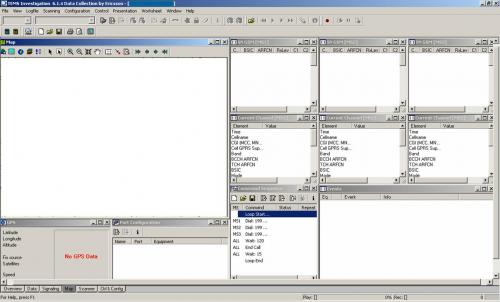
for benchmark workspace, add Serving + Neighbours GSM and Current Channel for MS3.

2g-bchmrk1


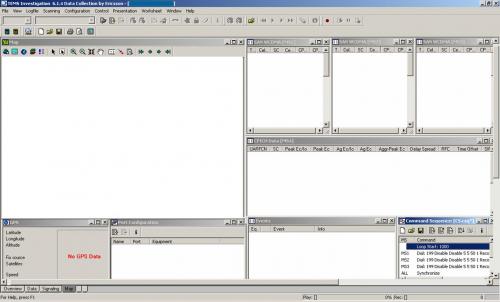
3g-bchmrk

Drive Test Laptop Configurations

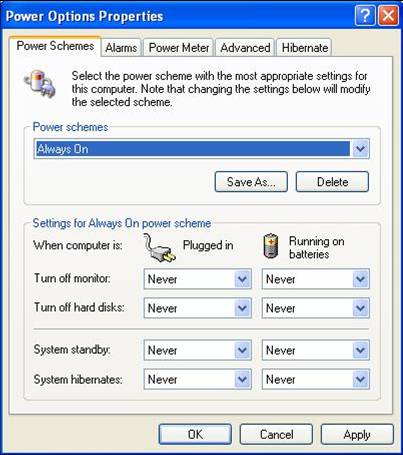
1. Power Management

Set Power Management Laptop always On :

Start -> Settings -> Control Panel -> Power Options -> Set All Power Scheme “never”

laptop-pwrmng

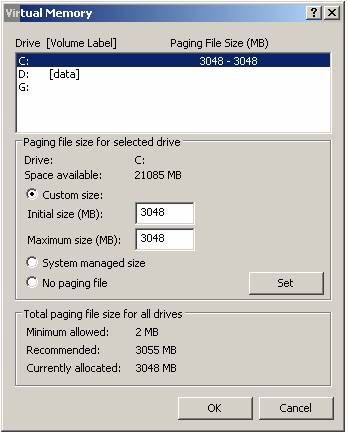
2. Virtual Memory

Set Virtual Memory :

Start -> Settings -> Control Panel -> System

Advance -> Performance Settings

laptop-virmem

Drive Test Equipments

Several equipments that use in drivetest :

1. TEMS Handset (complete with Charger, Headset, Data Cable) and USB Hub
1

2

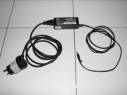
2. Laptop (installed TEMS Investigation) and Adapter

3

4

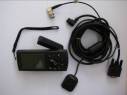
3. GPS (Ext Antenna and Data Cable)

5

4. ATEN (Serial to USB)

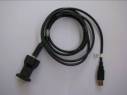
6

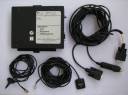
5. Scanner for WCDMA (Ext Antenna GPS and RF, Data Cable)

7

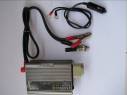
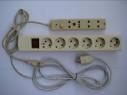
6. Inverter and Terminal

8

9

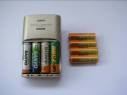
7. Battery and Charger

10


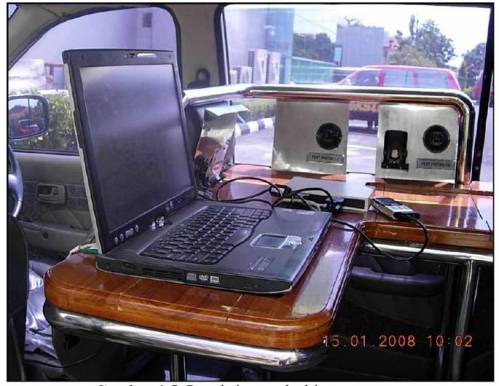
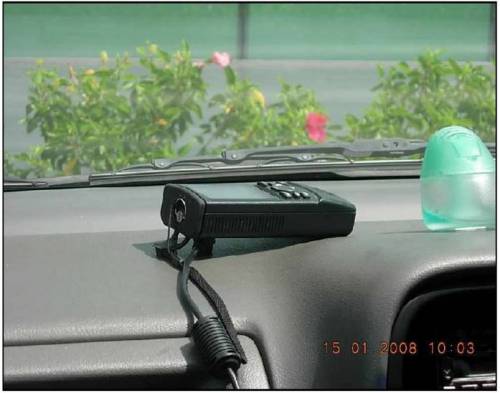
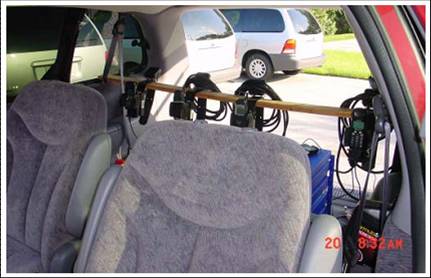
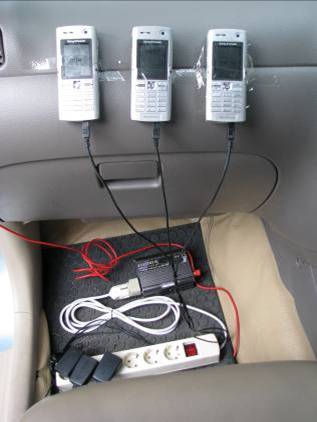
Example postion of that equipments in car :

1a


2a


3a


4a


Selasa, 06 April 2010

TCH ASSIGNMENT SUCCESS RATE

Probable Reason:


1) No dominant serving cell: The serving cell cannot cope with the TCH traffic.

2) Severe congestion on TCH: Failing TCH allocation for assignment or handover due to congestion

3) Low signal strength for call access: The signal strength might be higher on the BCCH than on the TCH.

4) Interference: Disturbance on SDCCH or target TCH

5) Faulty transceiver: Faulty equipment

The following procedure should be performed for TCH Assignment analysis:


For TCH assignment success rate, the first thing, check the TCH Time Congestion.


If there is congestion on TCH, it is recommend doing the dimensioning and adding TRU based on carried TCH traffic demand.


If there is no congestion on TCH, check the output power of the BTS. If the output power is low, increase the output power.


If the output power is ok, check the faulty BTS by extracting BTS error log.


If hardware fault found, swap or repair HW.


Perform drivetests to check the coverage and received RxLEV.


If no dominant cell or similar signal strengths of a few cells found during drivetests, it is recommended to add BTS.


If there is no problem on the dominant cell, check the interference whether co-channel or adjacent channel.


Check the disturbance whether it is on SDCCH or target TCH. If disturbance found, improve the frequency plan.


Mostly, the problems of low TCH assignment are TCH availability and interference.

My Headlines